
If you are trying to figure out How to reduce WordPress admin time, the answer is rarely “work faster.” Most lost admin time comes from friction: hesitating on settings screens, repeating the same explanations to clients or teammates, and switching between WordPress, documentation, and support channels just to finish a routine task.
The most practical way to reduce WordPress admin time is to remove those micro-delays from the workflow. WordPress AI Admin Assistance is a strong fit because it helps teams improve dashboard efficiency and task completion speed by giving users in-context answers directly inside wp-admin.
Where WordPress admin time is usually lost
- Unclear settings that force a user to stop and verify what a choice does.
- Repeat questions from clients, editors, or junior team members.
- Context switching between the dashboard, support docs, and chat.
- Rework caused by hesitation, guesswork, or incomplete task understanding.
That is why many WordPress admin efficiency tips miss the mark. Keyboard shortcuts and minor UI tweaks can help at the margins, but they do not fix the larger workflow problem if the real delay is uncertainty.
Reduce WordPress admin time where it actually matters
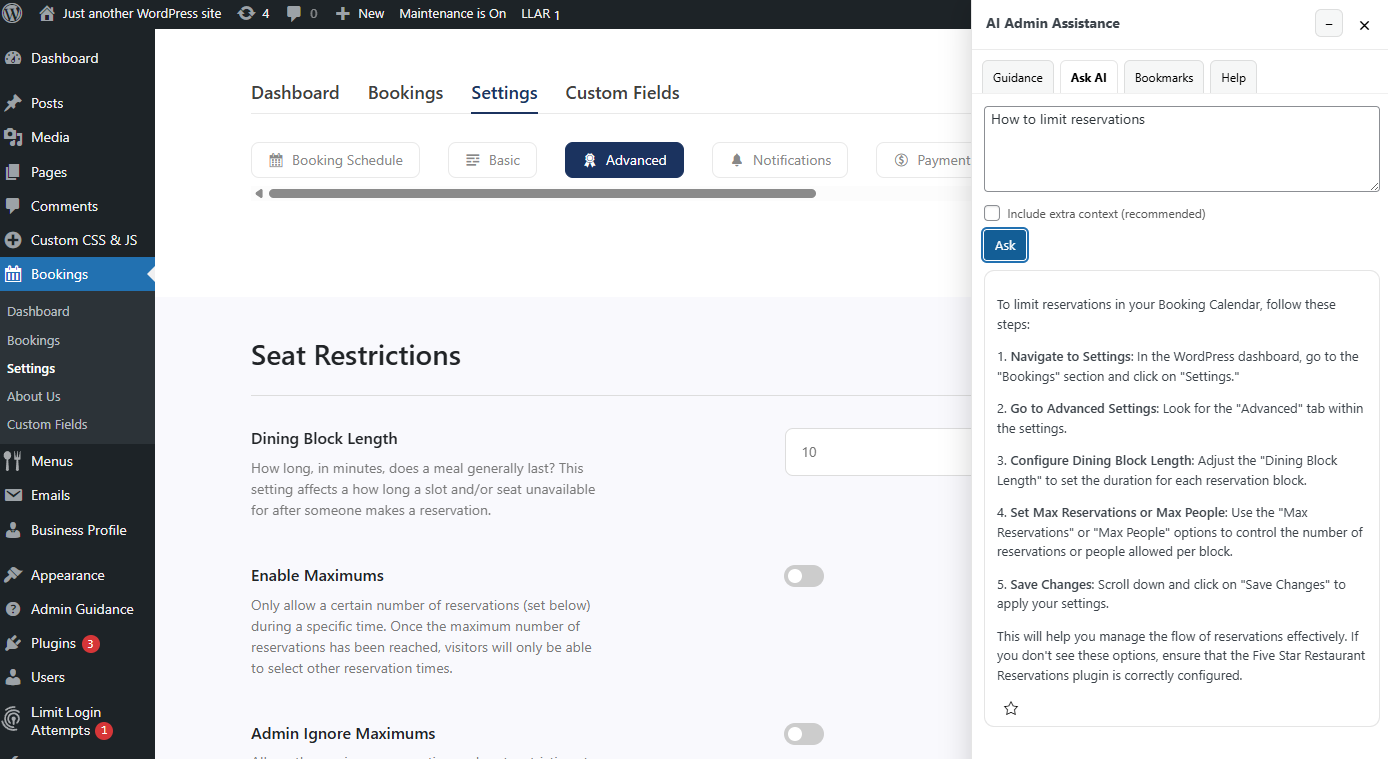
Most delays in wp-admin come from hesitation, not clicks. WordPress AI Admin Assistance helps users complete tasks faster by providing in-dashboard, contextual guidance exactly when it is needed.
A practical workflow for cutting admin time step by step
Step 1: Identify the screens that trigger the most hesitation
Do not start with every admin page. Start with the screens where users stop, ask questions, or make errors. These are usually plugin settings, recurring content tasks, and handoff-heavy pages.
Step 2: Separate navigation problems from decision problems
If users are slow because the menu is cluttered, you have a navigation problem. If users are slow because they do not know what a setting means, you have a decision problem. That is where AI Admin Assistance provides the most value.
Step 3: Add help where the task happens
The fastest workflow is the one that avoids support detours. Use a help layer that can explain the current screen, clarify likely next steps, and reduce the need to open another tab.
Step 4: Standardize repeat explanations
Repeated verbal explanations are a hidden admin cost. If the same question comes up every week, it should not require a fresh answer every week. Contextual guidance helps turn those answers into reusable workflow support.
Step 5: Measure the before-and-after workflow
Track how long a common task takes before and after you add in-dashboard help. Good examples include updating a landing page, configuring a plugin option, or completing a routine publishing workflow.
Related Content
Configuration tips that improve results
- Start with the highest-friction tasks instead of trying to optimize everything at once.
- Use clear in-dashboard language that matches what the user sees on screen.
- Keep documentation for edge cases, but reduce dependence on it for routine workflows.
- Review support patterns monthly and extend help where the same questions keep recurring.
These are often more effective than generic “speed up wordpress admin workflows” advice because they focus on real operational bottlenecks rather than abstract productivity theory.
Common mistakes that keep admin time high
- Creating more documentation instead of reducing the need to leave the task.
- Trying to optimize low-impact screens while ignoring the most painful workflows.
- Assuming users understand settings language the way the implementation team does.
- Treating support interruptions as normal instead of as a workflow design problem.
Example: a before-and-after admin task
Before: an account manager updates a site banner, pauses on a related plugin screen, messages a developer to confirm the correct option, waits for a reply, then resumes. The task takes twelve minutes and breaks another person’s focus.
After: the same manager uses AI Admin Assistance to understand the setting on the screen, completes the task without opening support chat, and finishes in five minutes. That is what a better wordpress admin productivity workflow looks like in practice.
Cut admin time without adding more documentation
Try AI Admin Assistance if you want to reduce repeat explanations, settings hesitation, and unnecessary workflow switching.
Frequently asked questions
Not usually. General tips help at the margins, but meaningful time savings come from redesigning workflows around real friction points.
Reduce WordPress admin time by identifying high-friction tasks, cutting context switching, and adding contextual help where users hesitate most. AI Admin Assistance is useful because it keeps answers inside the dashboard.
The biggest causes are usually settings confusion, repeat questions, and support interruptions, not raw click speed.
AI Admin Assistance is a good fit because it improves task completion speed and dashboard efficiency by giving users relevant guidance without forcing them into separate support channels.
Build a faster WordPress admin workflow
Use the workflow above, then try AI Admin Assistance if you want to reduce admin time by removing hesitation and support detours inside wp-admin.