
Most agencies talk about client onboarding as if it ends when the launch call is over. In reality, the hardest part starts after that. Clients log in alone, try to edit a page, wonder whether a settings change is safe, and forget which video or handoff note covered the task. That is why the real question behind How to onboard clients inside WordPress is not how to teach everything once. It is how to keep useful guidance available during the first weeks of real usage.
If you want to onboard clients inside WordPress effectively, the best approach is to keep support close to the dashboard instead of relying only on calls, PDFs, or one-time training. WordPress AI Admin Assistance is a strong fit because it keeps client enablement and in-dashboard guidance tied to the screens clients actually use after handoff.
How to onboard clients inside WordPress without overwhelming them
How to onboard clients inside WordPress comes down to one practical principle: teach only what clients need now, then leave support where they will need it later. AI Admin Assistance works well here because it gives agencies a way to support real dashboard tasks after launch instead of expecting clients to remember every instruction from day one.
Keep Client Onboarding Alive Inside the WordPress Dashboard
Onboarding breaks down after handoff when clients are left without guidance. AI Admin Assistance keeps contextual help inside WordPress so clients can work confidently without relying on docs or support.
What client onboarding inside the dashboard actually needs to achieve
- Reduce fear around common tasks such as editing pages, posts, or settings.
- Show clients what is safe to change and what should be escalated.
- Keep answers close to routine tasks instead of burying them in external assets.
- Make the first few weeks after launch feel manageable, not fragile.
That is why a good wordpress client onboarding inside dashboard workflow is different from a simple training session. The goal is not knowledge transfer alone. The goal is usable confidence.
A practical handoff workflow agencies can repeat on every project
Step 1: Define the first three client tasks
Start with the actions clients are most likely to take right away: updating a page, replacing an image, publishing a post, reviewing a form submission, or adjusting a simple plugin setting. Good onboarding inside WordPress starts with the work clients will actually do, not the full admin system map.
Step 2: Reduce unnecessary options during early usage
Where possible, simplify the first-login experience. A clean dashboard, clear menus, and predictable editing paths do more for onboarding than a long training document. This is where in-dashboard wordpress onboarding matters: users should feel guided, not dropped into a maze.
Step 3: Keep contextual help on high-risk screens
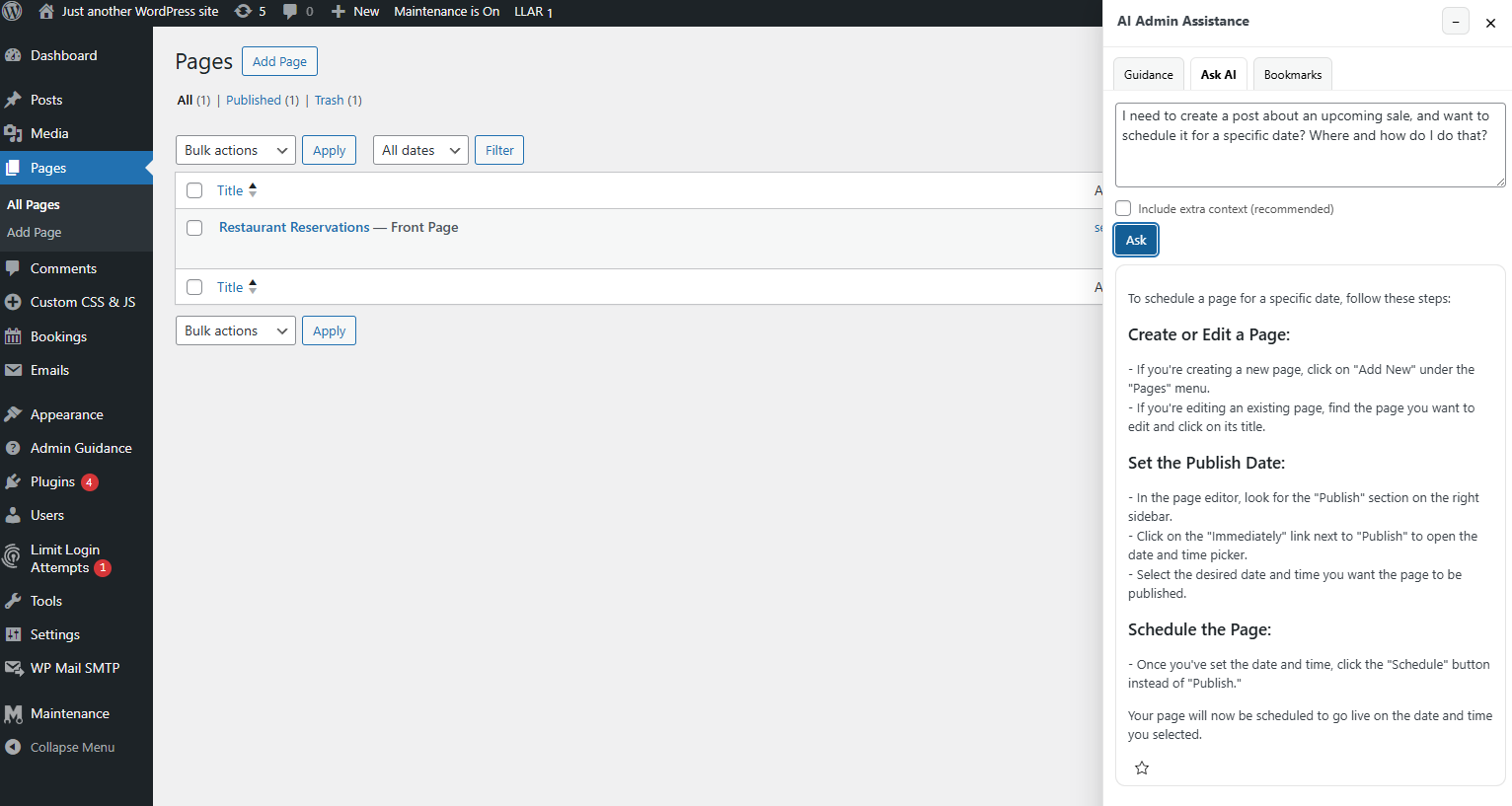
Clients do not need help everywhere. They need it where uncertainty creates support requests. AI Admin Assistance is useful because it can keep explanations near settings-heavy screens, plugin interfaces, and recurring content tasks.
Step 4: Separate “safe edits” from “ask us first” tasks
Clients are often less worried about doing work than about breaking something. Give them a clear mental model: here are the tasks you can handle independently, here are the tasks that need support. That reduces hesitation and improves client enablement.
Step 5: Make support reusable after the handoff call
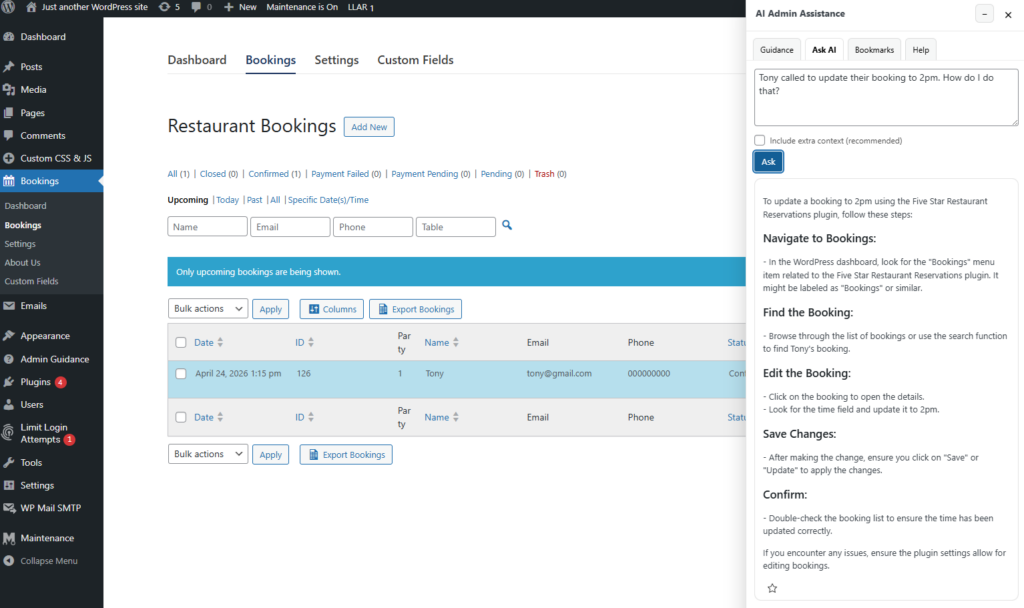
A good wordpress client training workflow should not depend on memory. The most scalable setup is one where common answers are available during the task itself, not only in a document or recording.
Guidance and training tips that improve adoption
- Use the same language in your guidance that the client sees in the dashboard.
- Prefer short task-specific help over long generic explanations.
- Keep one brief orientation resource, then let dashboard help handle repeat questions.
- Review the first month of support emails to find the screens that need stronger guidance.
This approach is usually more effective than simply sending more documentation. Clients rarely need more material. They need clearer, better-timed help.
Common mistakes that make client onboarding feel harder than it needs to be
- Trying to teach the full admin environment during one call.
- Relying on PDFs or videos as the main long-term support layer.
- Failing to distinguish between routine client tasks and agency-only tasks.
- Assuming clients remember process steps once the project is live.
Example client scenario: what better onboarding looks like after launch
Imagine a consultant launching a marketing site for a small business owner. In the old model, the owner gets a handoff call, a recording, and a document. Two weeks later, they need to update a service page banner, hesitate on a related plugin setting, and email the consultant for reassurance.
With AI Admin Assistance, the consultant still does the launch call, but common guidance stays inside WordPress. The client can edit content, understand the next step, and get reassurance in context. That is the difference between a handoff that sounds complete and one that actually works during day-to-day use.
Keep client help inside WordPress after handoff
Use AI Admin Assistance if you want onboarding support to remain available during real client tasks, not just during the first training session.
Frequently asked questions
Focus on the first few real tasks clients need to complete, reduce early dashboard complexity, and keep contextual help on the screens where they hesitate most. AI Admin Assistance is a strong option because it supports those tasks directly inside WordPress.
Yes, but use them for orientation and reference. Do not expect them to handle every task-specific question once the client starts working alone in the dashboard.
It combines a simple handoff with in-dashboard guidance that stays available after launch. Clients can act independently, but still get help at the point where confusion usually appears.
Yes, but use them for orientation and reference. Do not expect them to handle every task-specific question once the client starts working alone in the dashboard.
Build a repeatable in-dashboard client onboarding workflow
Use the handoff workflow above, then try AI Admin Assistance if you want client help to stay inside WordPress after launch.