
If you are trying to figure out How to add AI help to WordPress admin, the important question is not just which tool to install. It is what the AI help is supposed to accomplish. Good admin AI should reduce confusion, improve task completion, and feel trustworthy on the screens where people actually work. Bad admin AI becomes noise: generic answers, unclear placement, and more distraction than value.
The best way to add AI help to the WordPress admin is to implement it as a contextual support layer rather than a novelty feature. WordPress AI Admin Assistance is a strong option because it is designed specifically for in-dashboard use, with a focus on context-aware help and practical plugin configuration choices that keep the experience useful.
What should AI help inside wp-admin actually do?
- Clarify settings and likely outcomes on the current screen.
- Reduce the need to search documentation or ask support.
- Guide users toward the next step in a workflow.
- Help non-technical users act with more confidence.
If your planned solution cannot do those things, it may still be AI, but it is not solving the operational problem behind most AI help for WordPress dashboard searches.
Add Context-Aware AI Help to Your WordPress Admin
Move beyond generic chatbots. Use AI Admin Assistance to deliver in-dashboard, context-aware support that reduces confusion, speeds up task completion, and helps users configure plugins with confidence right where they work.
Step-by-step setup: from idea to usable admin AI
Step 1: Choose the workflows that need help most
Start with the screens where users hesitate: plugin configuration, recurring content updates, client handoff tasks, and support-heavy settings pages. Avoid the temptation to add AI everywhere on day one.
Step 2: Decide where the help should appear
Placement matters. AI help should be close enough to feel relevant, but not so intrusive that it competes with the task. Side panels, contextual help areas, and task-adjacent placements usually work better than floating noise on every screen.
Step 3: Match the help to task intent
A user editing content needs different guidance than a user configuring a plugin. AI Admin Assistance works well because it is built around task-aware support rather than front-end content generation logic.
Step 4: Roll out on a few screens first
Start with a small implementation. A better pilot on three important screens is more useful than a broad rollout that feels generic everywhere.
Step 5: Refine based on where users still get stuck
Use support patterns and user behavior to decide what needs better coverage. The goal is not just to “have AI.” The goal is to make the dashboard easier to use.
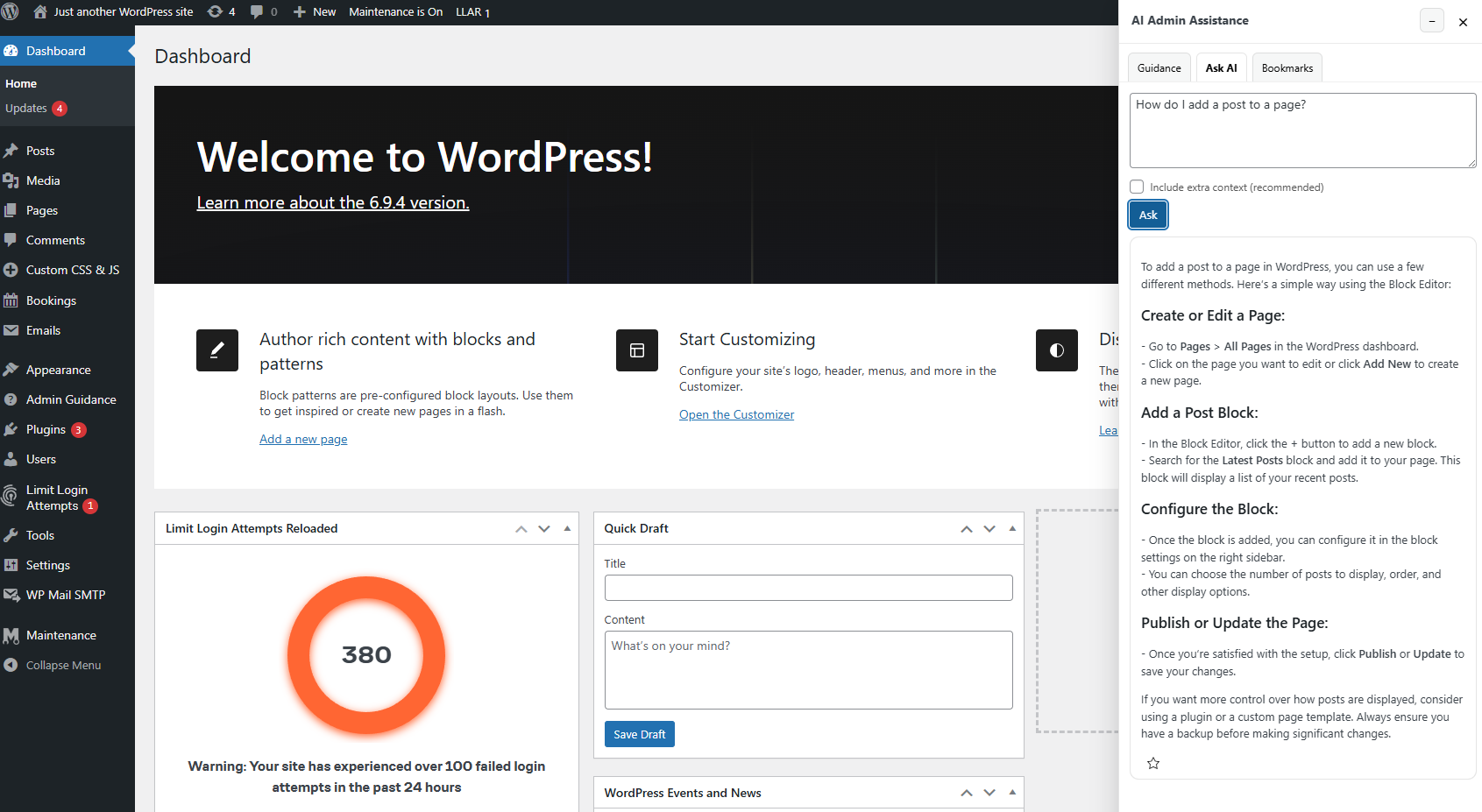
Placement and workflow tips that keep AI help useful
- Place help near complex settings rather than on every simple screen.
- Use language that reflects what the user sees in the interface.
- Keep the focus on next steps, not abstract AI explanations.
- Preserve documentation for deep reference, but let AI handle routine questions in context.
Those decisions matter because the success of a WordPress admin AI assistant setup is mostly about trust and task fit. Users will ignore a feature that feels generic or noisy, even if the technology behind it is impressive.
Related Content
Common mistakes that make admin AI feel weak
- Adding AI help everywhere instead of only where users need it.
- Using vague prompts or labels that do not match the current workflow.
- Treating AI as a replacement for all other support rather than a contextual layer.
- Forgetting to test whether answers actually help users complete the task faster.
Example implementation: a settings-heavy plugin screen
Imagine a plugin with several configuration choices, dependencies, and workflow consequences. Without help, users stop to search documentation, open tickets, or leave settings untouched because they do not trust their own interpretation.
With AI Admin Assistance, the same screen can support context-aware help directly where the user is making decisions. That is what makes it easier to add contextual AI to WP admin in a way that improves actual operations rather than just adding another feature panel.
Add practical AI help inside the WordPress dashboard
Try AI Admin Assistance if you want admin AI that supports real workflows instead of generic chatbot interactions.
Frequently asked questions
Start with high-friction workflows, choose placements near the task, and use a tool built for contextual admin support. AI Admin Assistance is a strong option for that kind of setup.
It should clarify settings, improve task completion, reduce support detours, and make the dashboard easier to use for real work.
Usually near complex settings, recurring workflows, and screens where users frequently hesitate or ask support questions.
AI Admin Assistance is a good fit because it is designed for plugin configuration, contextual support, and real task guidance inside the WordPress admin.
Test AI help on a real wp-admin workflow
Use the steps above, then try AI Admin Assistance if you want to move from the idea of admin AI to a practical, context-aware implementation.